

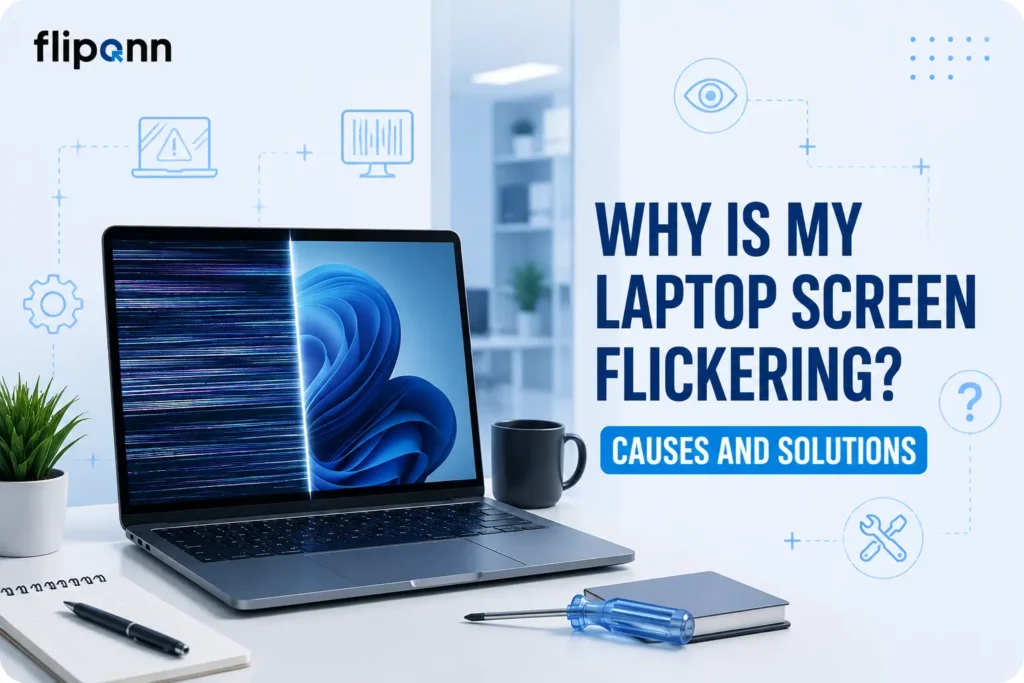
You’re in the middle of an important video call, working on a deadline, or watching something on your laptop, and suddenly, the screen starts to flicker. It’s frustrating, distracting, and, if ignored, it could signal a serious hardware problem.
If you’ve been asking “why is my laptop screen flickering?”, you’re not alone. It’s one of the most common laptop display complaints from users across Dubai and the UAE. The good news? Most causes are identifiable, and many can be fixed, sometimes without even leaving your desk.
In this guide, we’ll walk you through every major cause of laptop screen flickering and what you can do about it, in plain, simple language.
What Does a Flickering Laptop Screen Look Like?
Laptop screen flickering can appear in different ways:
- The screen flashes on and off rapidly
- Horizontal or vertical lines appear across the display
- The screen dims and brightens repeatedly
- Parts of the screen flicker while others remain stable
- The display flickers only when you move the laptop lid
Each of these patterns can point to a different underlying cause. Let’s go through them one by one.
Top Causes of Laptop Screen Flickering (And How to Fix Them)
1. Outdated or Corrupt Display Drivers
This is the most common cause- and the easiest to fix.
Your display driver is the software that tells your operating system how to communicate with the screen. When drivers become outdated or get corrupted (often after a Windows update), the screen can start flickering.
How to fix it:
- Right-click on the Desktop → Display Settings → Advanced Display Settings
- Go to Device Manager → Display Adapters
- Right-click your graphics card → Update Driver
- Restart your laptop
If the flickering started right after a Windows or macOS update, rolling back the driver to a previous version can also help.
Pro tip: Always keep your display drivers up to date. It prevents a lot of screen-related issues before they start.
2. Incompatible or Buggy Applications
Certain apps especially older software or poorly optimised programs, can conflict with your display settings and trigger flickering.
How to check:
- Press Ctrl + Alt + Delete and open Task Manager
- Watch if the Task Manager window flickers along with the rest of the screen
- If it doesn’t flicker: The issue is likely a software/app conflict
- If it does flicker: The problem is more likely a driver or hardware issue
How to fix it:
- Uninstall recently installed applications that may be causing the conflict
- Check if any background apps are using the GPU heavily
- Update all your installed software
3. Loose or Damaged Display Cable (LVDS/eDP Cable)
Inside your laptop, a thin cable connects the display panel to the motherboard. This cable is called the LVDS cable (on older models) or eDP cable (on newer ones). Over time, especially if you open and close your laptop frequently, this cable can become loose or damaged.
Signs this is the cause:
- The screen flickers only when you move the lid
- The flickering gets worse when you tilt the screen at certain angles
- One specific area of the screen flickers while the rest is stable
How to fix it: This requires opening the laptop and reseating or replacing the display cable, a job best left to a trained technician. Attempting it without experience can cause further damage.
4. Failing or Damaged LCD Panel
The LCD panel is the actual screen itself. Like any hardware component, it can degrade over time or get damaged from physical impact. A failing LCD panel often causes:
- Persistent flickering that no software fix can resolve
- Dark spots, blotchy areas, or lines on the display
- The screen going completely black after flickering for a while
How to fix it: If the LCD panel is the culprit, a laptop screen replacement is the only real solution. A certified technician will remove the damaged panel and install a high-quality replacement screen compatible with your laptop model.
Fliponn provides fast, reliable laptop screen replacement services in UAE for all major brands including Dell, HP, Lenovo, ASUS, Acer, Apple MacBook, and more.
5. Overheating
When a laptop overheats, it throttles performance to protect internal components, and the display can be one of the first things affected. An overheating GPU or CPU can cause the screen to flicker, dim, or stutter.
Signs of overheating:
- The fan is running loudly and constantly
- The laptop feels very hot to the touch
- Flickering increases during heavy tasks like gaming or video editing
How to fix it:
- Use your laptop on a hard, flat surface (not pillows or blankets)
- Clean the air vents with compressed air
- Consider using a cooling pad
- Avoid running too many heavy applications at the same time
- If overheating persists, have the internal thermal paste replaced by a technician
6. Low Screen Refresh Rate Setting
Every screen has a refresh rate, the number of times it refreshes the image per second, measured in Hz. If this is set too low (like 30Hz when your screen supports 60Hz or higher), it can cause noticeable flickering, especially under fluorescent lighting.
How to fix it:
- Right-click on your Desktop → Display Settings
- Scroll down to Advanced Display Settings
- Look for Refresh Rate and set it to the highest available option (typically 60Hz or higher)
This is a simple fix that many people overlook.
7. Faulty or Weak Power Supply / Battery Issues
An unstable power supply or a degrading battery can cause voltage fluctuations that affect the screen. If your laptop flickers mostly when unplugged or when the battery is low, this could be the cause.
How to fix it:
- Try using the laptop on direct AC power and see if the flickering stops
- Check your battery health in your operating system settings
- Replace the battery if it’s showing signs of degradation
8. Physical Damage to the Screen
Drops, bumps, or pressure on the screen can cause internal damage that leads to flickering, even if the outer glass looks fine. This kind of damage affects the LCD panel or the backlight behind it.
How to fix it: Only a screen replacement can resolve physically damaged displays. Do not try to use a cracked or physically damaged screen for long, as it can worsen and cause further internal damage.
Is your screen flickering after a drop or impact? Contact Fliponn for a same-day laptop screen replacement in Dubai →
Quick Diagnosis: Software Issue or Hardware Problem?
Use this simple table to help narrow down the cause:
| Symptom | Likely Cause |
| Flickering after a Windows/macOS update | Display driver issue |
| Task Manager doesn’t flicker, but other apps do | Software/app conflict |
| Flickering when you move the lid | Loose display cable |
| Flickering in specific areas or lines on screen | LCD panel damage |
| Flickering when running heavy applications | Overheating |
| Flickering only on battery power | Battery or power issue |
| Flickering after a physical drop or impact | Physical screen damage |
When Should You See a Professional?
You should seek professional help if:
- The flickering has been going on for more than a few days
- Software and driver fixes haven’t worked
- You see lines, blotches, or dark spots on the screen
- The screen flickers when you move the laptop lid
- Your laptop was dropped or physically damaged
Trying to disassemble a laptop without the right tools and training can damage components further and void any warranty. It’s always safer to hand it over to a certified technician.
Professional Laptop Screen Repair & Replacement in Dubai, UAE
If your laptop screen is flickering and you can’t fix it yourself, Fliponn’s Laptop Display Change & Screen Replacement Service is here to help.
Based in Bur Dubai, Al Fahidi, Fliponn serves businesses and individuals across the UAE — including Dubai, Abu Dhabi, and Sharjah.
Here’s why UAE customers trust Fliponn for laptop screen repairs:
- Certified, experienced technicians
- Genuine replacement screens for all major brands
- Fast turnaround — most repairs completed the same day
- Covers cracked screens, flickering displays, black screens, dead pixels, and more
- On-site support available across UAE
- Warranty on replaced screens
- Transparent pricing — no hidden charges
We service all major laptop brands including Dell, HP, Lenovo, ASUS, Acer, Samsung, Toshiba, Apple MacBook, and more.
Final Thoughts
A flickering laptop screen is annoying, but it doesn’t always mean the worst. Start with the easy software fixes, update your drivers, check your refresh rate, and close conflicting apps. If those don’t work, or if you suspect physical damage, it’s time to call in a professional.
Don’t let a flickering screen slow down your work or damage your eyes. Fliponn’s expert technicians in Dubai are just a call or WhatsApp message away.
Get Your Laptop Screen Fixed Today
Book a Laptop Screen Replacement with Fliponn
Frequently Asked Questions (FAQs)
Can a flickering laptop screen be fixed without replacing it?
Yes, in many cases. If the cause is a software issue like an outdated driver or app conflict, the fix is simple and free. However, if the flickering is caused by a damaged LCD panel or loose internal cable, a screen replacement or hardware repair is usually necessary.
How much does laptop screen replacement cost in UAE?
The cost depends on the laptop brand, model, and screen size. Fliponn provides transparent, upfront quotes– contact us for a personalised estimate.
How long does screen replacement take?
Most laptop screen replacements at Fliponn are completed on the same day, depending on screen availability for your specific model.
Will my data be safe during a screen repair?
Absolutely. Screen replacement is a hardware-only procedure and does not affect the data stored on your laptop. That said, we always recommend backing up your files as a good practice before any repair
Do you offer on-site laptop screen repair in Dubai?
Yes, Fliponn offers on-site support across the UAE. Get in touch to arrange a visit.